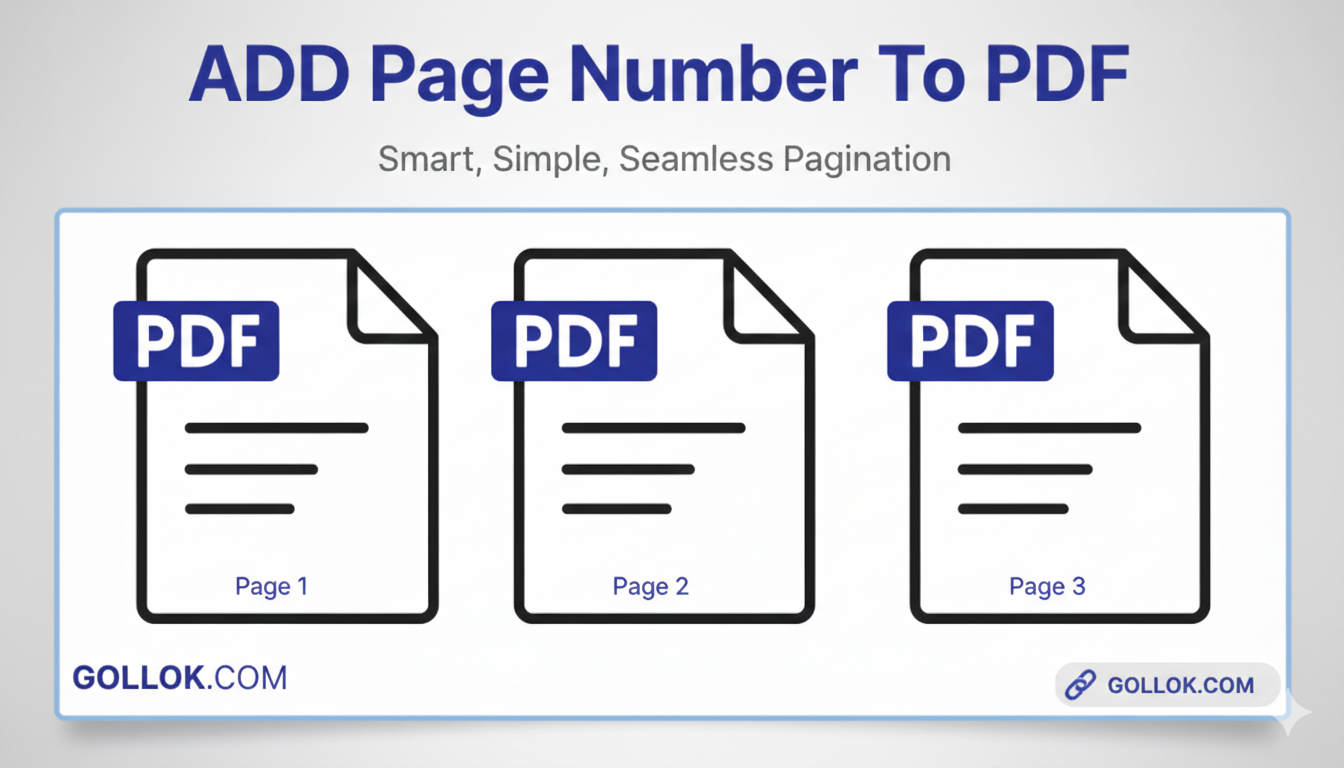
Effortlessly Add Page Numbers to Your PDFs with Gollok.com
In today’s digital world, PDFs are essential for everything from important documents and reports to e-books and presentations. While many PDFs come perfectly paginated, there are times when you need to add page numbers yourself – perhaps for printing, better organization, or simply to adhere to a specific document format.
Manually adding page numbers can be a tedious and time-consuming task, especially for lengthy documents. That’s where Gollok.com’s “Add Page Number to PDF” tool comes in!
Smart, Simple, Seamless Pagination, Right in Your Browser
Our online tool is designed to make the process of paginating your PDFs incredibly easy. You don’t need to download any software, register for an account, or have any technical expertise. Just a few clicks, and your PDF will be perfectly numbered.
1. Zero-Installation, Browser-Based Power
You don’t need to download heavy software like Adobe Acrobat or install suspicious plugins. This tool works entirely in your browser using client-side processing. This means:
-
Privacy: Your files are processed locally. They aren’t uploaded to a remote server where they could be stored or leaked.
-
Speed: Since there’s no big file upload/download to a server during the numbering process, it happens almost instantly.
2. Real-Time Visual Feedback (Live Preview)
The biggest problem with other “Add Page Number” tools is that you have to guess where the number will land. You click “Process,” download it, and realize the number is overlapping your text.
-
Gollok.com provides a Live Preview Overlay. As you change the margin, font size, or position, you see the number move on a preview of your actual document before you even hit “Apply.”
3. High-Level Customization
While simple tools only let you put numbers at the bottom, this tool offers “Gollok-level” precision:
-
Positioning: 6 distinct locations (Top/Bottom, Left/Center/Right).
-
Formatting: Use custom strings like
Page {n},Doc_Section_{n}, or just{n}. -
Typography: Change the color to match your branding, adjust font size for readability, and choose font styles.
4. Mobile Optimized & Scannable Design
Most PDF tools are designed for desktops and break on phones. The Gollok tool uses an adaptive design:
-
The sidebar automatically hides on mobile to give you full screen-space for the settings.
-
Inputs are sized perfectly for touch-screens, ensuring you can edit documents on the go.
5. Completely Free & Watermark-Free
Many “free” tools online will add their own logo or “Made by…” watermark to the bottom of your pages. Gollok.com keeps your professional documents clean—no watermarks, no hidden fees, and no page limits.
Using the Gollok.com PDF Page Numberer is designed to be a “drag, drop, and done” experience. Here is the step-by-step guide to getting your document numbered perfectly in seconds.
Step 1: Upload Your Document
You don’t need to click through complicated menus.
-
Drag and Drop: Simply grab your PDF file from your computer folder and drop it into the white dashed box.
-
Manual Select: Or, click anywhere inside the box to open your file explorer and choose your document.
Step 2: Live Preview & Alignment
Once the file is uploaded, you will see the first page of your PDF appear on the left.
-
Watch the Number: Look at the small text on the preview. As you change settings, that text will move instantly.
-
Positioning: Use the dropdown to choose from 6 locations (e.g., Bottom Center for formal reports or Top Right for internal memos).
Step 3: Customize the Look
This is where you make the document look professional:
-
Margin: Increase the number to move the page number further away from the edge of the paper.
-
Number Format: You can type anything. If you want it to say “Section 1”, “Section 2”, etc., just type
Section {n}. -
Color & Size: Match the page number to your company’s brand colors using the color picker.
Step 4: Apply and Download
-
Click “Apply to All Pages”: The tool will process the entire document locally in your browser (super fast!).
-
Rename: Enter your desired file name in the “File Name” box.
-
Download: Hit the Download PDF Now button to save your newly paginated file.
Quick Pro-Tips:
-
Start From: If your PDF has a cover page, you can set the “Start From” value to
0or2depending on how you want the sequence to begin. -
Safety first: Since the processing happens in your browser, your sensitive data never leaves your computer.