
Select or Drag PDF to Convert
Converting Pages...
Conversion Complete!
Gemini said
From Document to Picture: Why You Need a PDF to JPG Converter (And How to Do It Right)
We’ve all been there: you have a stunning image or an important infographic, but it’s trapped inside a multi-page PDF. You try to take a screenshot, but the quality is blurry, the edges are cut off, and it just looks… unprofessional.
Whether you’re trying to upload a certificate to LinkedIn, share a flyer on Instagram, or simply extract high-quality photos from a report, converting PDF to JPG is the solution. But you shouldn’t have to download heavy software or pay for a subscription just to get a single image.
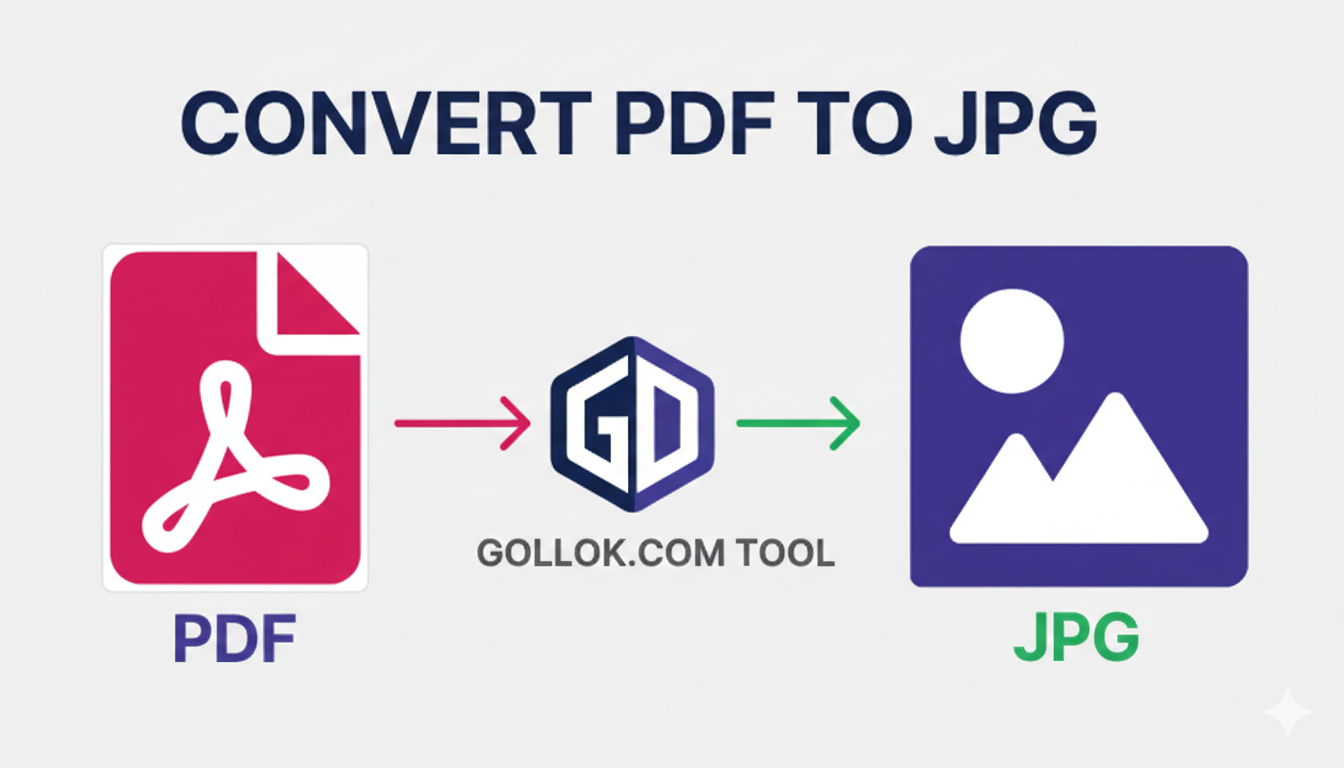
That is why we built the Gollok.com PDF to JPG tool—to make extraction as simple as a single click.
Why Convert PDF to JPG?
PDFs are great for “locking” a layout, but they aren’t very flexible when it comes to social media or quick editing. Here are the top reasons people are making the switch:
-
Social Media Sharing: You can’t post a PDF to Instagram or Facebook. Converting it to a JPG allows you to share your content instantly.
-
Smaller File Sizes: If you only need one page of a 50-page PDF, a JPG is much easier to email or send via WhatsApp.
-
Easy Embedding: JPGs can be dropped directly into Word documents, PowerPoint presentations, or blog posts without any formatting headaches.
-
Photo Extraction: Sometimes you don’t want the text; you just want the high-resolution images buried inside the document.
The Gollok Difference: Quality You Can See
Most free online converters compress your files so much that the resulting image looks like it was taken with a toaster. At Gollok.com, we believe in Original Quality.
Our tool doesn’t just “take a picture” of the page; it renders the PDF data into a crisp, clean image file.
How to use it in 3 steps:
-
Upload: Drag your PDF into our converter.
-
Select & Preview: Our unique interface shows you a grid of every page. If there are pages you don’t want, just hit the delete icon to blur them out—they won’t be included in your download.
-
Download as ZIP: We bundle all your chosen images into one neat ZIP folder, so your desktop stays organized.
Is It Safe?
Privacy is the biggest concern when using online tools. At Gollok.com, we use local processing logic. This means your sensitive documents aren’t sitting on a random server for weeks. Once you close your browser tab, your files are gone. Your data stays your data.
How to Use Gollok PDF Tools
Straightening, converting, or cleaning up your documents is as easy as 1-2-3. Since all our tools share the same friendly design, once you learn one, you know them all!
1. Upload Your Document
-
Select: Click the big dashed box to browse your computer or phone files.
-
Drag & Drop: On a desktop? Simply grab your PDF file and drop it right into the box.
-
Privacy Note: Your file loads instantly in your browser—no long upload wait times!
2. Manage Your Pages (The Fun Part)
Once your file is loaded, you will see a Visual Grid of all your pages:
-
To Rotate: Click the ↺ or ↻ arrows on any page to flip it. You can also use the “Global Tools” in the sidebar to rotate every page at once.
-
To Delete/Exclude: Click the ✕ (Trash Icon) on a page. The page will blur, meaning it won’t be in your final file. Changed your mind? Just click it again to restore it!
-
Check Quality: For JPG conversion, use the sidebar to select “Original Quality” for the best results.
3. Apply & Download
-
The Finish Line: Click the green “Apply & Finish” or “Convert Now” button.
-
The Progress Bar: You’ll see our signature 13-second progress bar while our system perfectly aligns and packages your document.
-
Save: Give your file a custom name (or keep the default
gollok_pdf) and hit Download Now.
💡 Pro Tips for Gollok Users:
-
Desktop is King: While our tools work on mobile, using a desktop allows you to see the Narrow Sidebar on the right with quick links to our other helpful tools.
-
Zip Folders: When converting to JPG, we bundle everything into a ZIP file to keep your “Downloads” folder from getting messy with 50 different images.
-
Restarting: Need to do another file? Don’t refresh the page! Just click the “Start New” button next to the download link to go back to the beginning.