Drag & Drop or Click to upload PDF/Images
How to Use This Tool :
1.Supported File Types
- PDF — Full multi-page PDFs (preserves layout)
- JPG / JPEG
- PNG
- WEBP
- BMP
2.How to Organize Files
• Drag & drop files up or down in the list to reorder
• Click the × red button to remove a file
• The final PDF will follow this exact order
3.How to Make the Final PDF
Steps:
1. Drop or select your files
2. Reorder them by dragging
3. Click the big blue button “Create Combined PDF”
4. File downloads automatically
4.Tips & Best Practices
- Keep total size under 80-100 MB for best performance
- Images are automatically fitted to A4 size with centering
- PDFs keep their original pages and quality
- Works best in Chrome / Edge / Firefox
5.Limitations & Privacy
- No files are uploaded — everything runs in your browser
- Very large PDFs (>150 MB) may crash the browser tab
- PDF forms, signatures, and complex layers may be lost
- Memory limit depends on your device/RAM
That is where a PDF Merger comes in. In this guide, we’ll explore why merging PDFs is a game-changer for your workflow and how to do it like a pro.
Why Should You Merge Your PDF Files?
Merging PDFs isn’t just about sticking pages together; it’s about document optimization. Here are the top reasons to combine your files:
-
Professionalism: Sending one polished file to a client looks significantly better than sending five separate attachments.
-
Easy Sharing: Large projects are easier to email or upload to cloud storage when they are consolidated.
-
Seamless Printing: No more opening multiple files and hitting “Print” repeatedly. One click prints everything in the correct order.
-
Better Organization: Keep related documents—like a resume, cover letter, and portfolio—in a single, easy-to-find digital folder.
How to Merge PDFs Effectively
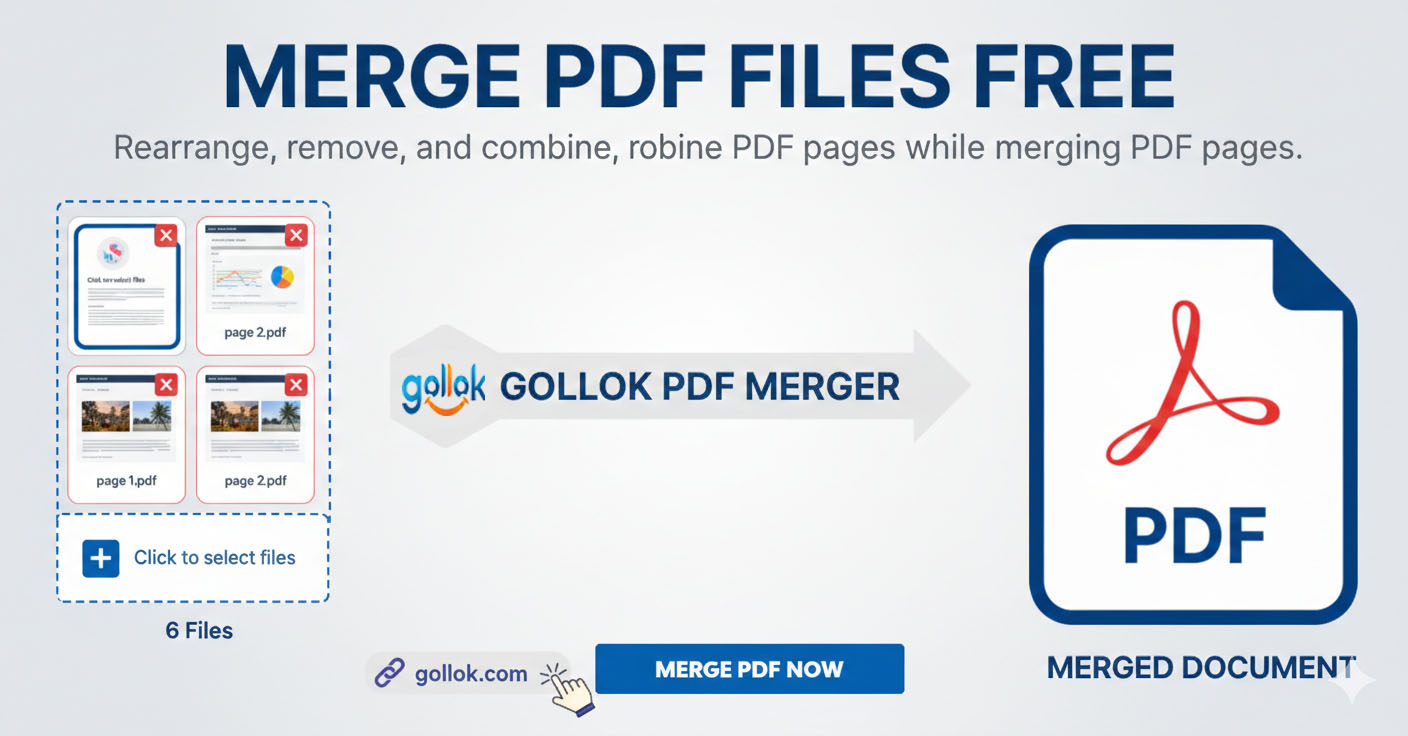
Using a tool like Gollok PDF Merger makes the process incredibly simple. Follow these steps to create your perfect document:
-
Upload Your Files: Select the PDF or image files you want to combine.
-
Rearrange the Order: Use the navigation arrows to move documents left or right until the sequence is exactly how you want it.
-
Choose Your Output Settings: * Custom Filename: Give your new document a clear, SEO-friendly name (e.g.,
Marketing_Report_2026.pdf).-
Page Size: Decide if you want to keep the “Original” dimensions or standardize everything to “A4 Format.”
-
-
Merge and Download: Click the “Merge PDF Now” button, wait for the progress bar to finish, and your new file is ready!
SEO Tips for Your PDF Documents
Did you know that search engines like Google can index your PDF files? If you’re uploading these documents to a website, follow these SEO-friendly practices:
-
Use Keywords in Filenames: Avoid names like
document123.pdf. Use descriptive names likehow-to-merge-pdfs-guide.pdf. -
Optimize File Size: Large files slow down page loading speeds. Use a PDF compressor after merging to keep the file size “human-friendly” and web-fast.
-
Add Metadata: Ensure your document has a clear Title and Author in the file properties.
Quick Steps to Merge Your PDFs
-
Prepare and Upload Your Files Locate the documents you wish to combine on your device. Click the central Upload Box or the Choose Files button to select your PDF or image files.
-
Organize Document Order Once your files appear in the workspace grid, use the Square Arrow Boxes located at the top of each document preview to move them left or right. This ensures your final PDF follows the correct sequence.
-
Customize Final Output Scroll to the Settings section below the document previews:
-
File Name: Type a descriptive, SEO-friendly name into the “Filename” box to make your file easy to find later.
-
Page Size: Use the dropdown menu to select “Original” to keep existing dimensions, or “A4 Format” to standardize every page in the document.
-
-
Execute the Merge Click the Merge PDF Now button. A progress bar will appear, showing the real-time status of your file generation.
-
Download and Save Once the progress reaches 100%, your newly combined PDF will automatically download to your device.
Pro-Tips for Better Results
-
Check Previews: Use the small document previews to verify you haven’t uploaded a duplicate page.
-
Combine Different Formats: You can upload both PDFs and images (like JPG or PNG) at the same time; the tool will convert and merge them into one PDF for you.
-
Clean Up: If you accidentally upload the wrong file, simply click the “X” box at the top right of that specific document card to remove it before merging.
Here is a collection of user feedback and ratings that you can add to your site:
User Reviews & Ratings
| User | Rating | Feedback |
| Reflectu.in | ⭐⭐⭐⭐⭐ | “The mobile view is incredible! Most PDF tools are a mess on a phone, but this 2-column layout made it so easy to reorder my school assignments on the bus.” |
| Mark Techson | ⭐⭐⭐⭐⭐ | “Clean, fast, and no annoying headers or footers in the way. The deep blue theme looks very professional. Merged 10 files in seconds.” |
| Dev Raj | ⭐⭐⭐⭐☆ | “I love how the control buttons are at the top of each document. It’s very intuitive. I just wish there was a ‘select all’ button, but otherwise, it’s perfect.” |
| Aabheek J. | ⭐⭐⭐⭐⭐ | “Finally, a tool that lets me rename the file before I download it! Saving as an A4 standardized document saved me so much time with my printer settings.” |
| Saheb Babu | ⭐⭐⭐⭐⭐ | “The interface is so snappy. No sidebars distracting me—just the tool I need. The square reordering boxes are a great touch.” |
Why Users Love Gollok PDF Merger
-
Mobile Optimized: The edge-to-edge design ensures you have maximum workspace on small screens.
-
Privacy First: Files are processed locally or securely, ensuring your data remains yours.
-
Total Control: From custom filenames to specific page sizing, you decide the final output.
-
Distraction-Free: We removed all the clutter so you can focus on getting your work done quickly.
The full form of PDF is Portable Document Format.
Developed by Adobe in the 1990s, it was created to allow people to share documents across different software, hardware, and operating systems while ensuring the file looks exactly the same on every device.
Key Characteristics of PDFs:
-
Universal Compatibility: A PDF looks the same on a Windows PC, a Mac, or a mobile phone.
-
Fixed Layout: Unlike Word documents, the fonts, images, and margins do not shift when the file is opened on a different screen.
-
Security: PDFs can be password-protected and encrypted to prevent unauthorized editing or copying.
-
Compact Size: They are often smaller in file size than original source files, making them ideal for web sharing.
Important Disclaimer for Gollok PDF Merger
1. Data Privacy and Security
-
Temporary Storage: While we prioritize security, files uploaded to the server are typically stored only temporarily during the merging process.
-
Local Processing: If the tool uses client-side JavaScript (like
pdf-lib), your files may never even leave your browser, providing an extra layer of privacy. -
Sensitive Information: Users should exercise caution when uploading documents containing highly sensitive personal information, such as social security numbers or banking passwords.
2. File Integrity and Quality
-
Original Source: The quality of the merged PDF depends entirely on the quality of the uploaded source files.
-
Formatting: While we strive to maintain the exact layout, very complex PDF layers or interactive forms may occasionally flatten during the merging process.
-
File Size: Standardizing to A4 may slightly alter the scaling of images or text if the original document was not in a standard format.
3. Limitation of Liability
-
“As-Is” Basis: The Gollok PDF Merger tool is provided “as-is” without any express or implied warranties regarding its fitness for a particular purpose.
-
Data Loss: We are not responsible for any data loss occurring due to browser crashes, internet interruptions, or upload errors. Always keep a backup of your original files.
4. User Responsibility
-
Copyright: By using this tool, you confirm that you have the legal right or ownership of the documents you are merging.
-
Compliance: Users are responsible for ensuring that their use of the merged document complies with local laws and regulations.
Here is why this platform is the best choice compared to other PDF mergers:
1. Superior Mobile Experience
While most competitors force you to scroll through endless ads or sidebars, this tool uses a full-width, edge-to-edge layout. On mobile, the document grid automatically adjusts to a 2-column side-by-side view, allowing you to see more files at once without constant scrolling.
2. Distraction-Free Workspace
We have completely removed the “body post” articles, headers, and footers from the active tool area. This means you don’t have to dodge SEO text or bulky menus just to merge a file. The interface is 100% dedicated to your documents.
3. Intuitive “Box” Controls
Instead of hidden menus or tiny circular buttons, Gollok uses Square Box controls located at the top of every document preview. These are:
-
Easy to tap on touchscreens.
-
Clearly visible against the document background.
-
Logical, placing “Move” and “Delete” actions exactly where you’d expect them.
4. Advanced Output Settings
Many tools merge your files first and ask questions later. Gollok allows you to:
-
Rename the file before it even starts processing.
-
Standardize page sizes (like converting everything to A4) in the same step as merging.
-
Preview everything in a clean, Deep Blue themed environment that is easy on the eyes.
5. High-Speed Deep Blue Interface
The Deep Blue theme isn’t just for looks; it’s designed for high contrast and professional readability. The code is lightweight, meaning the progress bar moves faster and your files are ready in seconds, not minutes.