
Select or Drag PDF File
Generating Your PDF
Please wait while we apply rotations...
Ready for Download!
Global Tools
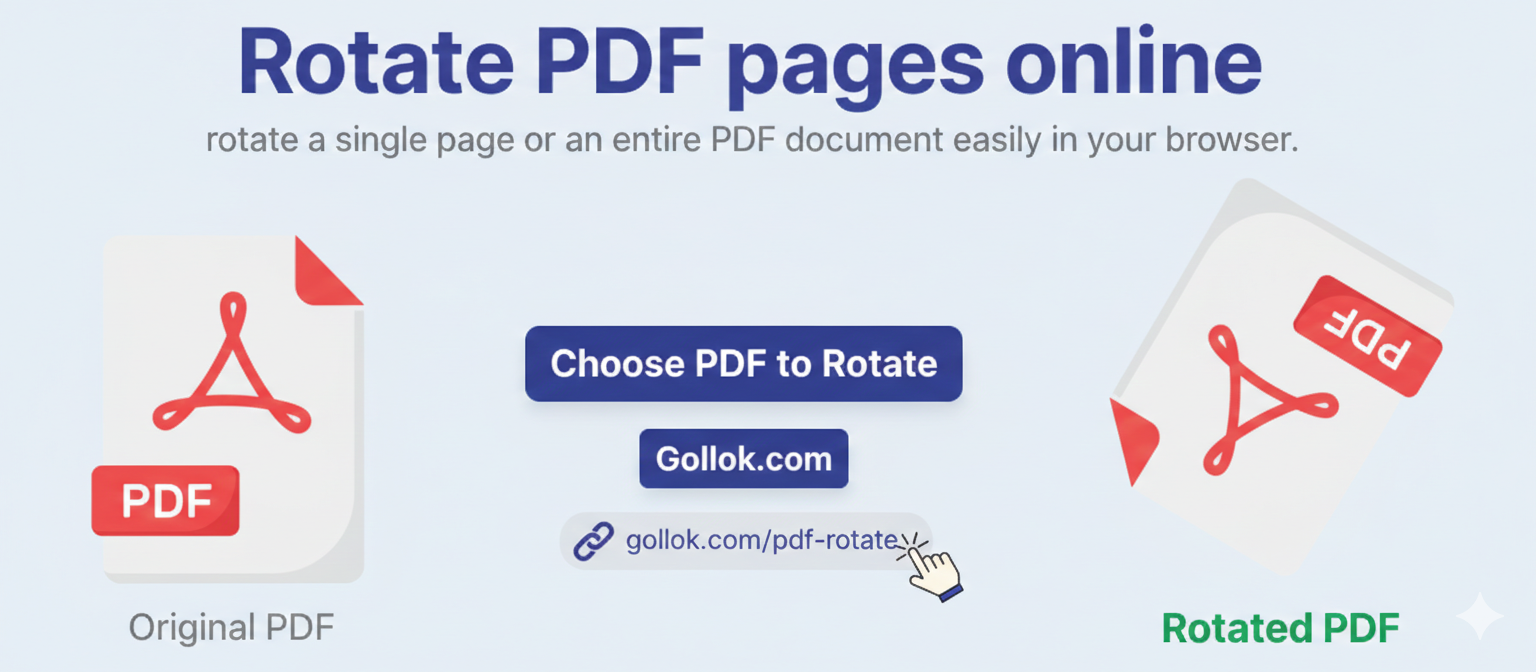
Whether you need to fix a single crooked scan or reorient an entire document, learning how to Rotate PDF pages efficiently is a must-have digital skill. In this guide, we’ll explore why PDFs end up sideways and how you can fix them in seconds using Gollok.com.
Why Are My PDF Pages Sideways?
Before we fix it, let’s look at why it happens. Usually, it’s one of three culprits:
-
Scanner Error: Hand-feeding documents into a scanner often leads to pages being pulled in horizontally.
-
Mobile Scanning Apps: If you use your phone to “scan” a document, the orientation sensor might fail to detect which way is up.
-
Landscape vs. Portrait: Sometimes, a document contains a mix of wide tables (landscape) and standard text (portrait), but the PDF viewer forces everything into one view.
How to Rotate PDF Pages Online (The Easy Way)
You don’t need expensive, heavy software like Adobe Acrobat to fix a simple orientation issue. Online tools are faster, free, and require zero installation. Here is how to do it on Gollok.com:
-
Upload Your File: Drag and drop your PDF into the secure upload box.
-
Choose Your Rotation: * Single Page: Hover over the specific page that is sideways and click the ↺ or ↻ icons.
-
Bulk Rotate: If the whole document is wrong, use the “Rotate All” button in the sidebar to fix everything at once.
-
-
Process and Download: Click “Apply,” wait a few seconds for the tool to finalize the layout, and download your perfectly aligned PDF.
Benefits of Using Gollok.com for PDF Rotation
While there are many tools out there, Gollok.com focuses on a “Clean and Fast” experience:
-
Privacy First: Your files are processed locally or deleted shortly after download, ensuring your sensitive data stays safe.
-
Visual Grid: Unlike some tools that make you guess, we show you a thumbnail of every page so you can see exactly what you’re rotating.
-
No Watermarks: Your professional documents stay professional. We don’t add “Created by” stamps to your files.
-
Universal Compatibility: Whether you are on a Mac, Windows, or a mobile phone, the tool works perfectly in your browser.
Pro Tip: Permanent vs. Temporary Rotation
Many people make the mistake of just “rotating the view” in their PDF reader (like Chrome or Preview). This does not save the file. The next time you open it or email it to someone else, it will be sideways again.