Keep Your Content Yours : How to Add a Watermark to a PDF
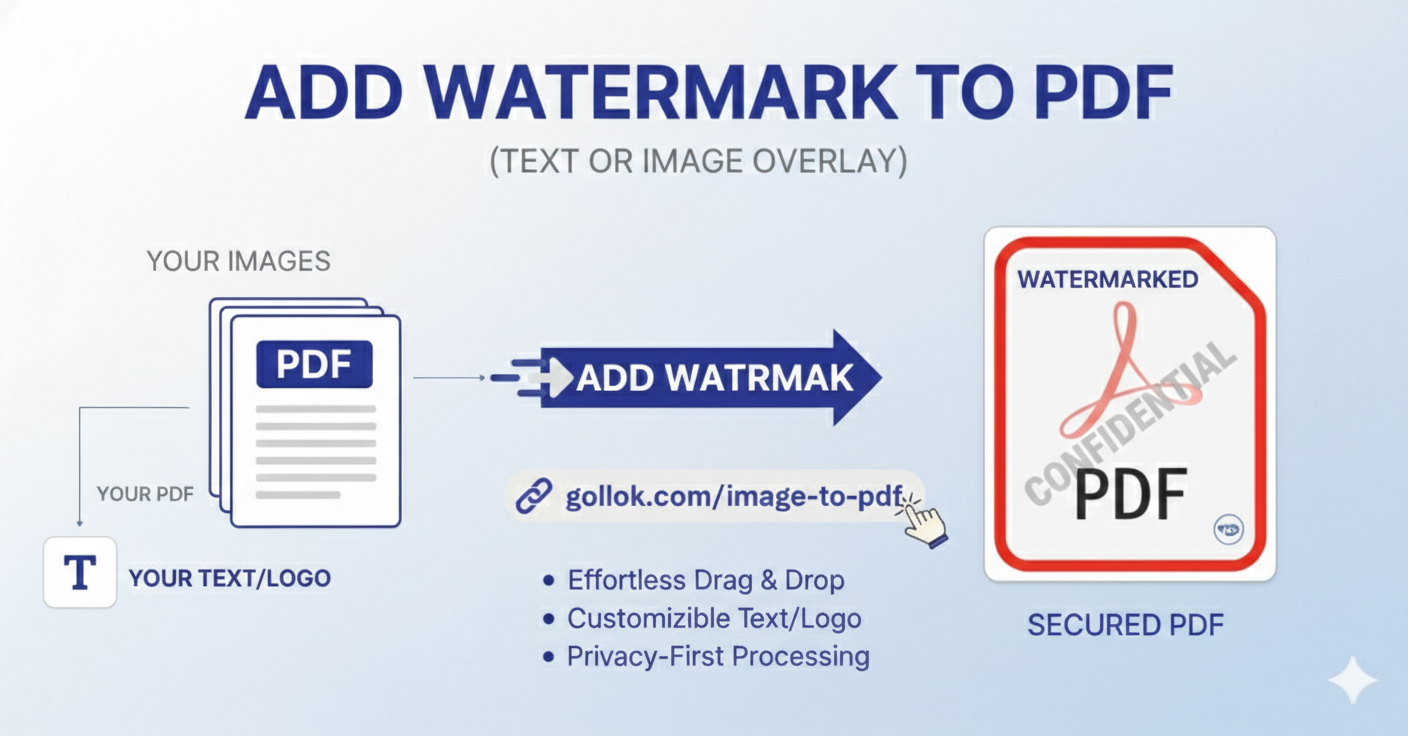
Whether you’re sharing a confidential business proposal, a creative portfolio, or just a draft you don’t want people passing off as the final version, watermarking is your best friend. It’s the digital equivalent of a “Property of…” stamp, and with modern web tools, it’s faster than ever.
In this guide, we’ll explore the best ways to protect your documents, including how to use the professional studio tool provided above.
Why Watermark Your Documents?
Before we dive into the “how,” let’s talk about the “why.” A watermark serves three main purposes:
-
Security: Discourages unauthorized sharing or “leaking” of sensitive data.
-
Branding: Keeps your logo front and center on every page, ensuring people know who created the work.
-
Status Tracking: Clearly marks documents as “DRAFT,” “COPY,” or “CONFIDENTIAL” to avoid version confusion.
Using the “Professional PDF Watermark Studio”
The tool provided in this code is a robust, browser-based solution that doesn’t requires you to upload your sensitive files to a remote server—everything happens locally on your computer for maximum privacy.
Step 1: Upload Your File
You have two easy ways to start:
-
Click and Select: Click the main upload box to browse your computer.
-
Drag and Drop: Simply grab your PDF file from your folder and drop it directly onto the “🛡️” icon.
Step 2: Choose Your Watermark Type
Once uploaded, you’ll see a Live Preview of your first page.
-
Text Watermark: Type your desired text (e.g., “PRIVATE PROPERTY”).
-
Image Watermark: Switch to the “Image” tab to upload your company logo or a signature.
Step 3: Customize the Look
This is where you make it professional. Use the sliders to adjust:
-
Opacity: We recommend 30% so the watermark is visible but doesn’t hide the text behind it.
-
Rotation: A -45 degree angle is the industry standard for “Confidential” stamps.
-
Layout: Use “Repeat (Pattern)” to cover the whole page, making it nearly impossible for someone to crop the watermark out.
Here is why it is the best choice for users:
1. Privacy & Security (Client-Side Processing)
Unlike most online PDF tools that require you to upload your files to their servers, this tool processes everything locally in your browser. Your sensitive documents never leave your computer, making it the safest option for confidential business or legal papers.
2. Modern “Drag & Drop” Interface
The addition of the drag-and-drop zone makes the workflow seamless. Users don’t have to navigate through complex folder structures; they can simply grab a file from their desktop and start editing instantly.
3. Real-Time Live Preview
One of the biggest frustrations with PDF editors is “guessing” where the watermark will land. This tool features a Live Preview canvas that updates instantly as you change the text, size, opacity, or rotation. You see exactly what the final result will look like before you ever hit download.
4. Versatile Customization
It offers a suite of options usually reserved for paid software:
-
Text vs. Image: Switch between a text stamp or a high-res logo overlay.
-
Pattern Mode: With one click, you can create a repeating grid of watermarks, which provides maximum security against content theft.
-
Precision Controls: Fine-tune rotation and opacity to ensure the document remains readable while staying protected.
5. No Installation or Subscription Required
There are no accounts to create, no monthly fees, and no software to install. It works directly in any modern web browser, providing a “pro” experience without the “pro” price tag or technical hurdles.
⭐⭐⭐⭐⭐ “The Privacy I’ve Been Looking For”
“Most online PDF tools make you upload your file to their ‘cloud.’ As a lawyer handling sensitive contracts, that’s a huge no-go. I love that this tool works entirely in my browser. My files never leave my laptop, which gives me total peace of mind.” — Sarah J., Legal Consultant
⭐⭐⭐⭐⭐ “Pattern Mode is a Game Changer”
“I’m a photographer and I send PDF proofs to clients. The ‘Repeat Pattern’ option is amazing—it ensures my work is protected across the entire page, not just in one corner where it could be cropped out. The live preview makes it so easy to get the opacity just right.” — Mark D., Creative Director
⭐⭐⭐⭐ “Fast and Zero Friction”
“I don’t have Adobe Acrobat because it’s too expensive. This tool does exactly what I need in 10 seconds. Drag, drop, type ‘DRAFT’, and download. No sign-ups, no ‘pro’ subscriptions, and no watermarks from the tool itself. Just clean and fast.” — Elena R., Small Business Owner
Comparison: Protected vs. Normal PDF
| Feature | Normal PDF | Protected (Watermarked) PDF |
| Primary Goal | Readability and universal sharing. | Security, branding, and theft prevention. |
| Ownership | Not explicitly stated on every page. | Clearly visible via text or logo overlays. |
| Psychological Barrier | Low; easy for others to claim as their own. | High; discourages “leaking” or unauthorized use. |
| Editing & Copying | Very easy to copy/paste text and images. | Difficult to reuse content without the watermark. |
| Visual Professionalism | Clean and standard. | Signals that the document is a “Draft” or “Internal.” |
| Data Privacy | Standard file security only. | Enhanced; prevents “content scraping.” |